
Flow AI Image to Video: Turn Any Photo Into a Veo 3.1 Clip
Upload a photo, say how it should move, and Veo 3.1 Lite turns it into a 4–8-second video with sound. Your photo is the first frame, so faces and products start exactly as you shot them. Flow AI image to video in your browser, with no Google subscription and no watermark.
- Free credits to try
- Your photo is the first frame
- First and last frame
- No watermark
Start with your photo. Drop it onto the box below or press Attach, then write only the movement you want.
Sexually explicit (NSFW) content is strictly prohibited.
Flow AI Studio is an independent video generator. It is not affiliated with, endorsed by or connected to Google. Flow and Veo are trademarks of Google LLC.
Flow AI image to video examples
Veo 3.1 clips that started as still images, with the exact prompt each one used: the same model Google Flow runs. Two start from one photo; two were given a first and a last frame.
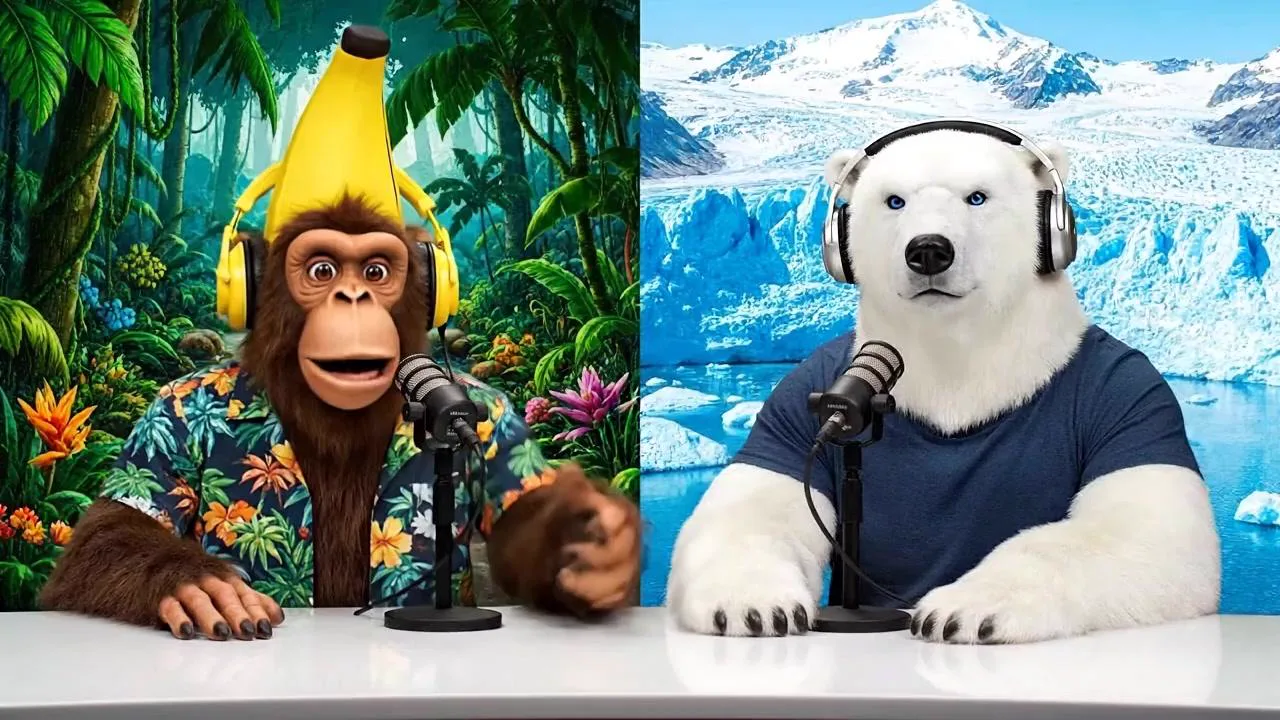 The photo
One still, two hosts, and the dialogue written in quotes: Veo 3.1 voices both characters.
The prompt
A monkey and polar bear host a casual podcast about AI inference, bringing their unique perspectives from different environments (tropical vs. arctic) to discuss how AI systems make decisions and process information. Sample Dialogue: Monkey (Banana): "Welcome back to Bananas & Ice! I am Banana" Polar Bear (Ice): "And I'm Ice!"
What is Flow AI image to video?
Google Flow is Google’s AI filmmaking tool, and image to video is one of its main modes: you give Veo, Google DeepMind’s video model, a picture as the first frame, and the scene starts moving from there, with dialogue, sound effects and music in the same pass.
In Flow itself that takes free daily credits that run out after a few clips, then a Google AI Pro or Ultra subscription, and exported videos carry a visible watermark, which Ultra subscribers report too.
Flow AI Studio is an independent website that does the Flow AI image to video part with the same model. Upload a photo, or a first and a last frame, and Veo 3.1 Lite or Veo 3.1 Fast makes the clip. You see the price before you press generate and download an MP4 with no watermark.
How to use Flow AI image to video
Flow AI image to video takes four steps, and only the second one needs any thought: describe the movement, not the photo.
- 1
Upload your photo
Drop it onto the box or press Attach. A sharp picture with the subject in clear view works best.
- 2
Describe the movement
Write what moves and how: “he looks up from the book and laughs, slow push-in”. Put any dialogue in quotes.
- 3
Pick length and shape
4, 6 or 8 seconds, in 16:9 or 9:16. Veo 3.1 Lite costs least; Veo 3.1 Fast adds detail and 1080p.
- 4
Generate and download
Press Turn photo into video. Most Flow AI Studio clips are ready in a minute or two and download as an MP4.
First and last frame: choose where the clip ends
Google Flow calls this Frames to Video. In Flow AI Studio, switch the box to First and last frame and add two images: where the shot starts and where it ends. Veo 3.1 works out the motion in between: a bud that opens, a product that turns, a room that changes from day to night. Both images should share the same framing, or the camera will lurch to match them.
Prompt tips: describe the motion, not the photo
The model can already see your photo. Words spent describing it either repeat what is there or ask for something slightly different, and that is when faces and products start to drift, in Google Flow as much as here.
Describes the photo
A beautiful woman with long brown hair in a red dress standing in a garden at sunset.
Describes the motion
She turns toward the camera and smiles, a light breeze moves her hair, petals drift past. Slow push-in. Keep her face exactly as in the photo.
One main action
One clear movement looks natural. Three in eight seconds look rushed and pull the face out of shape.
Add a camera move
Slow push-in, orbit or handheld: a camera move makes even a still subject feel alive.
Say what must not change
“Keep the face exactly as in the photo” or “the label stays readable” tells Veo what to hold on to.
Write the sound
Veo 3.1 adds audio, as it does in Google Flow. Name it when it matters: waves, a café murmur, a line of dialogue in quotes.
Flow AI photo to video ideas
Each idea comes with a motion-only prompt. Press Use this prompt, add your own photo and generate it in Flow AI Studio.
A product photo into an ad
Light sweeps across a packshot, droplets fall, the camera pushes in: a launch clip without a studio.
Show the prompt
Portraits and selfies
A turn of the head, a smile, hair in the wind. Keep it to one gesture and the face stays yours.
Show the prompt
Make a photo talk
Write a line in quotes and the person or character in the photo says it, lips in sync.
Show the prompt
Pets
A head tilt, ears up, a tail wag and one happy bark.
Show the prompt
Old family photos
A blink, a soft smile and a slow camera move. Photograph the print straight on and crop the border.
Show the prompt
AI images and artwork
A picture from Nano Banana or your own drawing becomes the first frame of an animated scene.
Show the prompt
Good to know before you upload
- One Veo 3.1 clip runs 4–8 seconds in 16:9 or 9:16. For a longer video, animate the photo several times and join the clips; the scene builder is a Google Flow feature, not part of Flow AI Studio.
- Upload only photos you have the right to use: yourself, people who agreed, your own family photos. No celebrities, nothing sexual or harmful. Veo can refuse a photo on its own; failed clips are refunded.
- Small text, hands and very fast motion are the hardest parts. If they warp, ask for slower movement or a closer crop.
Flow AI image to video FAQ
What is Flow AI image to video?
It is the Google Flow mode that animates a still picture with Veo, Google’s video model. Flow AI Studio offers the same Flow AI image to video in the browser, without the Google subscription.
Is Google Flow image to video free?
Google Flow gives free accounts a small daily allowance of credits at the time of writing; more needs Google AI Pro or Ultra. Here every new account gets 100 free credits, enough for a 4-second Veo 3.1 Lite clip from your photo.
How much does a clip cost?
8 seconds of Veo 3.1 Lite is 200 credits. The exact cost shows before you generate, and failed clips are refunded.
Will the video still look like my photo?
Yes, your photo is the first frame, so the face, the product and the colours start exactly as uploaded. Describe only the motion and add “keep the face exactly as in the photo”.
Can I make a photo talk?
Yes. Put the line in quotes and say who speaks it. Veo 3.1 renders the voice, lip movement and background sound together.
What is first and last frame?
A mode where you upload two images, the start and the end of the shot, and Veo animates the change between them.
How long is a Flow AI image to video clip?
4 to 8 seconds. For something longer, make several clips and join them in any editor.
Does the video have a watermark?
No. Unlike Google Flow exports, which carry a visible mark, clips from Flow AI Studio download as MP4 with no watermark, on every plan and on the free credits.
Is Flow AI Studio part of Google Flow?
No. It is an independent website, not affiliated with Google, that runs the same Veo 3.1 model through an API.
Turn your photo into a video
Upload a photo, describe the motion, download the clip. The Veo 3.1 model from Google Flow, with sound, no subscription and no watermark.
Upload a photoRelated tools
Other Flow AI Studio pages that open the same studio, set up for a different job.
- Flow AI Watermark RemoverUpload your Google Flow or Veo video and remove the corner watermark.
- Flow AI Image GeneratorCreate and edit images with Nano Banana 2, Nano Banana Pro and GPT Image 2.
- GalleryBrowse sample clips and reuse their prompts.
- AI video modelsEvery video model on Flow AI Studio, with what it costs.